
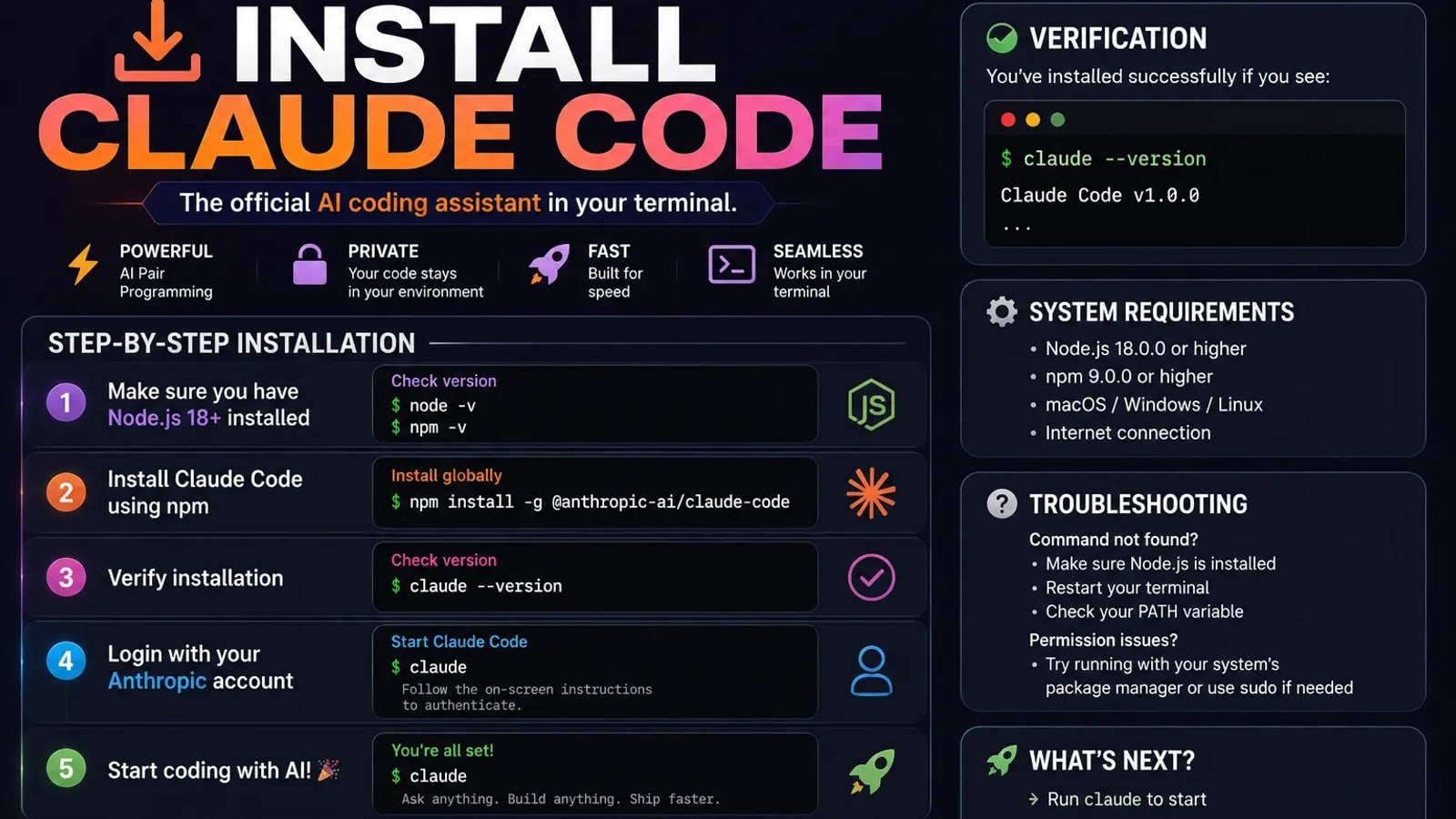
Installing Claude Code takes one command and about a minute. Almost nobody gets stuck on that part. What people get stuck on is everything around it — running the wrong command for the terminal they are in, finishing the install and discovering their account does not include access, or getting it working and then finding the tooling behaves oddly because of a missing dependency nobody mentioned. This covers the install for each platform, and then the four things that go wrong afterwards. Every command here was checked against the official installation documentation on 24 August 2026; they do change, so treat those docs as the final word if anything below no longer matches what you see.
Key takeaways
- The native installer is the recommended route on every platform, needs no Node.js, and is the only method that updates itself.
- On Windows, PS at the start of your prompt means PowerShell and no PS means CMD — running the other one's command is the most common install failure.
- Claude Code needs a Pro, Max, Team, Enterprise or Console account. The free plan does not include it, and nothing warns you until login.
- On native Windows, installing Git for Windows decides whether commands run through Git Bash or PowerShell, which is why some tutorials behave unexpectedly.
- Homebrew, WinGet and Linux package installs do not auto-update — you upgrade those yourself.
- Run claude --version to confirm the install, and claude doctor for diagnostics when something is off.
Check this before you start
Two minutes here saves a confusing failure later. The requirements are modest, but the operating system floors are real and the error you get from being below them does not say so.
- macOS 13.0 or newer.
- Windows 10 version 1809 or newer, or Windows Server 2019 or newer.
- Ubuntu 20.04 or newer, Debian 10 or newer, or Alpine Linux 3.19 or newer.
- 4 GB or more of RAM, on an x64 or ARM64 processor.
- A working internet connection, and a location in a country Anthropic supports.
- Bash, Zsh, PowerShell or CMD as your shell.
The install command for your platform
The native installer is the recommended route on every platform. It needs no Node.js, sets up its own path, and updates itself in the background afterwards — which is the main reason to prefer it over the alternatives further down.
On macOS, Linux, or Windows Subsystem for Linux, open a terminal and run: curl -fsSL https://claude.ai/install.sh | bash
On Windows in PowerShell, run: irm https://claude.ai/install.ps1 | iex
On Windows in CMD, run: curl -fsSL https://claude.ai/install.cmd -o install.cmd && install.cmd && del install.cmd
You do not need administrator rights on Windows, and you should not use sudo on macOS or Linux. If a guide tells you to install this with elevated privileges, it is wrong, and it causes permission problems later that are tedious to unpick.
When it finishes, move into whichever project folder you want to work in and type claude to start a session.
If you would rather have this built for you than build it yourself, an AI consultation is where we scope that.
PowerShell or CMD: the most common Windows mistake
Windows has two terminals that look almost identical and take different commands. Running the wrong one produces an error that does not explain the real problem, and this is the most frequent reason a Windows install fails on the first attempt.
The quickest way to tell them apart is the prompt. PowerShell begins the line with PS, as in PS C:\Users\YourName. CMD shows the same path without the PS.
The two errors map directly onto the mix-up. A complaint that the token && is not a valid statement separator means you ran the CMD command inside PowerShell. A complaint that irm is not recognised as an internal or external command means you ran the PowerShell command inside CMD. Neither means the install is broken — you are simply in the other terminal.
Windows: native or WSL, and why it matters
Claude Code runs natively on Windows or inside Windows Subsystem for Linux, and the choice affects more than convenience.
Native Windows needs nothing extra and suits Windows-native projects and toolchains. WSL 2 suits Linux toolchains, and it is the only one of the two that supports sandboxed command execution — if running commands in an isolated environment matters to you, that decides it on its own. WSL 1 works but, like native Windows, does not support sandboxing.
One optional step changes behaviour enough to be worth knowing about. Installing Git for Windows is not required, but it determines which shell Claude Code uses to run commands: with it, Claude Code uses Git Bash; without it, it falls back to PowerShell. Neither is broken, but a tutorial written for one will not always behave the same in the other, and this quietly catches people following guides that assume Bash.
If you go the WSL route, run the macOS and Linux command from inside the WSL terminal rather than from PowerShell or CMD, and start Claude Code from inside WSL too.
The other install methods, and when to use them
The native installer suits most people. These alternatives exist for specific situations, and one difference between them matters more than any other: only the native install updates itself.
- Homebrew on macOS or Linux — brew install --cask claude-code. Two casks exist: claude-code follows a stable channel, roughly a week behind and skipping releases with known major problems, while claude-code@latest takes new versions immediately. Homebrew does not auto-update; you run the upgrade yourself.
- WinGet on Windows — winget install Anthropic.ClaudeCode. Also does not auto-update; run winget upgrade Anthropic.ClaudeCode periodically.
- Linux package managers — signed apt, dnf and apk repositories are published for Debian, Ubuntu, Fedora, RHEL and Alpine. This is the right choice where an organisation manages software through system packages. Updates then arrive through your normal system upgrade process rather than from Claude Code.
- npm — npm install -g @anthropic-ai/claude-code, which needs Node.js 22 or later. Worth knowing that this installs the same native binary as the standalone installer rather than a JavaScript version; npm is only the delivery mechanism. Never run it with sudo.
- Alpine and other musl-based distributions need a few packages first, including bash, curl and ripgrep, because Alpine ships without bash or curl and the install command fails with a not-found error until they are present.
Confirming it actually worked
Run claude --version. A working install prints a version number followed by the words Claude Code. If you get command not found instead, either the install did not complete or the binary is not on your path.
For anything beyond that, run claude doctor. It prints read-only diagnostics without starting a session — install health, errors in your settings files, and warnings with suggested fixes. It is the first thing to run when something behaves oddly, and considerably faster than guessing.
The part that catches most people: your plan
This is the most common reason someone completes the install correctly and still cannot use it, and most installation guides never mention it.
Claude Code requires a Pro, Max, Team, Enterprise or Console account. The free Claude.ai plan does not include access. Nothing in the install warns you — it succeeds, the command runs, and you hit the wall at the login step. If you are on the free plan, the install was never the problem.
There is one alternative worth knowing about: Claude Code can also run against a third-party provider such as Amazon Bedrock, Google Cloud or Microsoft Foundry. That is usually relevant only if your employer already routes AI usage through one of them.
To log in, run claude and follow the browser prompt. If an API key is already set in your environment, it asks you to approve using that instead of opening a browser.
When the install succeeds but something is still wrong
Four problems account for most of what happens after a successful install.
- The command is not found. Open a new terminal window first — a path change usually does not apply to a session that was already open. If it persists, run claude doctor from a fresh terminal.
- You have two installations. Installing once with npm and later with the native installer, or following two different guides, leaves you with two copies and sometimes a shell alias pointing at the older one. The symptoms are confusing rather than obvious: a version number that will not move, or updates that appear to do nothing.
- Search does not work. Claude Code relies on ripgrep, which normally ships with it. On Alpine and other musl-based systems you install ripgrep yourself and tell Claude Code to use the system copy.
- It works, but not like the tutorial you are following. On Windows, check whether Git for Windows is installed — that decides whether commands run through Git Bash or PowerShell, and most tutorials silently assume Bash.
Keeping it up to date
Native installations check for updates on startup and periodically while running, download them in the background, and apply them next time you start. For most people that means never thinking about updates at all.
Homebrew, WinGet and Linux package manager installs do not auto-update. That is the practical cost of choosing them, and it is easy to end up months behind without noticing.
To update immediately rather than waiting for the next background check, run claude update. If you are already current, it says so rather than doing anything.
You can also choose how fast updates reach you. The default channel takes new versions as they ship; a stable channel runs roughly a week behind and skips releases with known major regressions. On a shared or production machine, stable is usually the better default.
Common questions
Do I need Node.js? Not for the native installer, Homebrew, WinGet, or the Linux package managers. Only the npm route needs Node, version 22 or later. This is the biggest change from older guides, many of which still present npm as the standard path.
Is Claude Code free? No. It needs a Pro, Max, Team, Enterprise or Console account, and the free Claude.ai plan does not include it. Installing it on a free account works and then stops at login.
Can I use it without the terminal? Yes. There is a desktop application for macOS, Windows and Linux, which is the better starting point if the command line is unfamiliar, along with extensions for common editors.
Do I need administrator or sudo rights? No, and you should avoid them. Installing globally with sudo causes permission problems later and is explicitly discouraged.
How do I check which version I have? Run claude --version. For a fuller picture, including configuration problems, run claude doctor.
How do I uninstall it? That depends on how you installed it, since each method has its own removal step. If claude still runs afterwards, you almost certainly have a second installation or an old shell alias left behind.
Once it is installed and running, the next question is what to actually do with it — what Claude Code is and how to start using it covers the first real task in plain language.
Related services
AI Workflow Automation
We architect and build intelligent workflow systems that connect your tools, execute decisions, and run processes around the clock — without any human input.
Explore automation infrastructureCRM Automation
We turn your CRM into an intelligent revenue engine — automated pipelines, smart follow-ups, AI scoring, and reporting that shows what to do next.
Explore crm intelligence